Monday, 3 September 2012
Thing 19: Catch up week on integrating 'things'


It's time for a little bit of a breather and some reflection on what you've gained from the programme so far and how you might continue to use what you've learnt. We've covered a number of social media tools (e.g. blogs, RSS feeds, Twitter, LinkedIn) and productivity tools (e.g. Google calendar, Evernote, Google Docs, wikis), as well as considering a number of different elements of our professional development (e.g. personal branding, reflective practice, advocacy, events). You can see a full list of the things we've covered so far here.
The purpose of this week is to look back at your previous posts and consider which elements you have found most useful and how you might integrate them into your working routine. You might already have done this, so feel free to blog about how you have done that if so. Maybe you've started using RSS feeds or Twitter during breaks to catch up on news. Maybe you're using LinkedIn for group discussions on professional topics or to share updates about your professional developments. Perhaps it's a technical solution you have discovered which updates multiple services at once or enables you to manage a number of different things. Or perhaps you haven't had chance to think about integrating anything yet. Now is your chance to review the previous tools and think about how you might continue to use them. Choose one or two (or more if you're feeling ambitious!) and share your thoughts in this week's blog post.

Monday, 27 August 2012
Thing 18: Jing / screen capture / podcasts (making and following them)
Well done all for making it thus far! We now explore some enhanced ways of visualising data with the help of screen capture tools. We will also take a look at podcasting.
1. Jing
Screen capture tools allow you to make a narrated video showing how to do something on a computer. They record your mouse, and everything you click on and show on your screen. Ever had a conversation over the phone with your parents, trying to explain to them how to open the attachment you sent in your last email? (“Double-click on the attachment icon!” – “There isn’t one!”...): this trick could help you solve this kind of situations and, more importantly, some work-related issues like having to explain over and over again to your users how your library systems work.

You can download a free version of Jing at http://www.techsmith.com/jing/. You will get a “Sun Launcher” button on your screen (top centre for Windows, upper right corner for Mac).
Hover over the “sun” and choose Capture. Click and drag to select a portion of your screen., and then release the mouse when you are happy with the image you have selected.
From here, you can do two things: 1) take a screen capture or 2) make a video.

The clever feature in Jing is that you can annotate your capture, by inserting a text box, highlighting part of the image, or adding an arrow. Once you are done, click on the Save button.
If you choose to record a video, Jing will provide you with an icon to check that you are not on mute and then will give you 3 seconds (!) before the recording starts, so make sure you’ve got a microphone and are ready to go. There is a 5-minute time limit – remember to keep your script short, clear and concise. Click Stop when your are done, and Save.
If you are following the cpd23 programme from your work computer only, it is likely that you won’t be allowed to download Jing. In this case, a very good alternative is Screencast-o-matic. Its use and features are marvellously explained in this post, written by The Book Gryphon for the Cam23 2.0 programme.
There is a variety of tools available for screen casting; if you want to explore the topic further, you can also take a look at Camtasia and Lightshot to name just a few.
2. Podcasting
A podcast is an audio file broadcasted via the Internet. What differentiates it from web streaming is the fact that podcasts are usually part of a series, centrally maintained and regularly updated, which also allows for offline use after downloading. You can subscribe to a series so that it automatically downloads on to your computer and MP3 player. To do this, you need to have podcatching software, such as, for example, iTunes.
Podcasts are a good tool to use if you are planning to deliver a series of talks, training updates, or anything that will require delivering your content over time.
An example of podcasting for librarians is the arcadia@cambridge seminars series. Careers services are using podcasting too: see for example the amazing series produced by the Careers Group-University of London, which is open-access and free for anyone to download – a great source of professional development-related information.
How to make podcasts: the best way to get started is to take a look at Podwhating?, a full course on podcasting provided by Edinburgh Napier University. It took place last year and worked more or less like 23 Things, with blog entries for each task; all the content is still there, and the site features also a wonderful page of course materials that you can access for free. I particularly recommend the guides dedicated to installing and using Audacity, the main free software for making podcasts.

What next?
Thing 18 requires a lot of work, especially if you haven’t used these tools before. If you have, let us know what you made of them and how they enhanced your work. If you haven’t, explore them and let us know how you think you could use them. Real examples in the form of screen captures and podcasts are welcome, of course!
NB: Post written by Maria Giovanna De Simone
1. Jing
Screen capture tools allow you to make a narrated video showing how to do something on a computer. They record your mouse, and everything you click on and show on your screen. Ever had a conversation over the phone with your parents, trying to explain to them how to open the attachment you sent in your last email? (“Double-click on the attachment icon!” – “There isn’t one!”...): this trick could help you solve this kind of situations and, more importantly, some work-related issues like having to explain over and over again to your users how your library systems work.
You can download a free version of Jing at http://www.techsmith.com/jing/. You will get a “Sun Launcher” button on your screen (top centre for Windows, upper right corner for Mac).
Hover over the “sun” and choose Capture. Click and drag to select a portion of your screen., and then release the mouse when you are happy with the image you have selected.
From here, you can do two things: 1) take a screen capture or 2) make a video.

The clever feature in Jing is that you can annotate your capture, by inserting a text box, highlighting part of the image, or adding an arrow. Once you are done, click on the Save button.
If you choose to record a video, Jing will provide you with an icon to check that you are not on mute and then will give you 3 seconds (!) before the recording starts, so make sure you’ve got a microphone and are ready to go. There is a 5-minute time limit – remember to keep your script short, clear and concise. Click Stop when your are done, and Save.
If you are following the cpd23 programme from your work computer only, it is likely that you won’t be allowed to download Jing. In this case, a very good alternative is Screencast-o-matic. Its use and features are marvellously explained in this post, written by The Book Gryphon for the Cam23 2.0 programme.
There is a variety of tools available for screen casting; if you want to explore the topic further, you can also take a look at Camtasia and Lightshot to name just a few.
2. Podcasting
A podcast is an audio file broadcasted via the Internet. What differentiates it from web streaming is the fact that podcasts are usually part of a series, centrally maintained and regularly updated, which also allows for offline use after downloading. You can subscribe to a series so that it automatically downloads on to your computer and MP3 player. To do this, you need to have podcatching software, such as, for example, iTunes.
Podcasts are a good tool to use if you are planning to deliver a series of talks, training updates, or anything that will require delivering your content over time.
An example of podcasting for librarians is the arcadia@cambridge seminars series. Careers services are using podcasting too: see for example the amazing series produced by the Careers Group-University of London, which is open-access and free for anyone to download – a great source of professional development-related information.
How to make podcasts: the best way to get started is to take a look at Podwhating?, a full course on podcasting provided by Edinburgh Napier University. It took place last year and worked more or less like 23 Things, with blog entries for each task; all the content is still there, and the site features also a wonderful page of course materials that you can access for free. I particularly recommend the guides dedicated to installing and using Audacity, the main free software for making podcasts.
What next?
Thing 18 requires a lot of work, especially if you haven’t used these tools before. If you have, let us know what you made of them and how they enhanced your work. If you haven’t, explore them and let us know how you think you could use them. Real examples in the form of screen captures and podcasts are welcome, of course!
NB: Post written by Maria Giovanna De Simone
Monday, 20 August 2012
Thing 17: The Medium is the Message- Prezi and Slideshare
This post was originally published by Ange Fitzpatrick as part of the 2011 programme.
Prezi- I like to move it, move it
Prezi is now a very well known presentation tool and a great alternative to PowerPoint, but like any tool it has to be used well to achieve the best possible results. The unique aspects of Prezi include the ability to zoom, pan and layer levels of information in a way that offers the best viewing experience for the attendee. In an effort to avoid ‘death by PowerPoint’ people often overuse these aspects of the software and the results are as predictable as PowerPoint, albeit with more motion sickness!
A Voice in the Wilderness: Personalised Library Services in a Virtual Environment- Meg Westbury
Using one large picture as a background allows you to show detail, the whole picture and the relationships between them.
Techniques to bear in mind:
Scale of the Solar System Activity- Todd Ensign
Prezi is a great alternative to a hand out, or for getting your message to those who can’t physically attend your talk. If your voice isn’t there to accompany the presentation you will have to be more reliant on text, but you can do this without resorting to those tried, tested and tired PowerPoint bullets!
Try these:
Not everything is best taught using a projector and a laser pointer, welding, for example, but even if you are not teaching welding you can use Prezi to help bring together your non-projection teaching. Simply use the Prezi as a mindmapping space, the different text colours, frames and arrows allowing you to forge connections between disparate parts of your subject.
By the way, I was wrong about welding. As 21 pages of 'how-to weld' Prezis proves. Go have fun!
Does Prezi mean the end for my PowerPoints?
Relatively new to prezi is the ability to upload and enhance PowerPoint slides. This gives you an opportunity to remix your existing PowerPoint slides, adding value by connecting them in a way that comes naturally to Prezi, but is impossible to do with PowerPoint.
Over to you...
Take some time to experiment with Prezi and think about what kind of angles it could offer to help you sell your service more effectively. Try creating a take-away teaching course, breathe new life into some PowerPoint slides or create a dynamic induction presentation for new staff or students.
A final but important tip about images. Be sure to use high-quality images- .png or convert to .pdf, try Zamzar for free conversion. You can achieve variety or uniformity by mounting your images on frames or applying washes or treatments like drop shadows- Picnik will do all this and more, quickly, easily and most importantly: gratis.
Extra Credit:
Prezi For The Win? Ten Top Tips To Make a Good One- Ned Potter Edited 29/09/11: Ned has pointed out that this guide is now out of date. His revised version is here: The ultimate guide to Prezi.
Browse Slideshare in search of the good, the bad and the ugly. Can you find anything that you could draw inspiration from?
Shareable teaching products, okay, predictable, but what else? What was that about getting noticed?
Prezi- I like to move it, move it
Prezi is now a very well known presentation tool and a great alternative to PowerPoint, but like any tool it has to be used well to achieve the best possible results. The unique aspects of Prezi include the ability to zoom, pan and layer levels of information in a way that offers the best viewing experience for the attendee. In an effort to avoid ‘death by PowerPoint’ people often overuse these aspects of the software and the results are as predictable as PowerPoint, albeit with more motion sickness!


The
main thing to bear in mind when experimenting with Prezi is to step
away from a linear presentation style, this will allow you to dance
around your subject, drawing commonalities and contrasts from different
elements of your topic. There are some great online guides which will
help you, and I suggest you have a look a these, but there is no better
way to get a grip on Prezi than to get your hands dirty.
So rather than walking you through Prezi, I'm going to consider a few general techniques you could use when selling your information and library service. Thinking about how we can exploit the intrinsic qualities of Prezi let’s consider a couple of uses:
Dynamic presentations
The success of this depends on using the functionality of Prezi to tell the story of your argument. Use the fact that you can travel along the canvas with your audience to illustrate the main points of your presentation. Raise a problem, look around it (literally!) , offer solutions and then show the audience how they can take your approach and apply it to their own situations.
Great techniques for this include:
So rather than walking you through Prezi, I'm going to consider a few general techniques you could use when selling your information and library service. Thinking about how we can exploit the intrinsic qualities of Prezi let’s consider a couple of uses:
Dynamic presentations
The success of this depends on using the functionality of Prezi to tell the story of your argument. Use the fact that you can travel along the canvas with your audience to illustrate the main points of your presentation. Raise a problem, look around it (literally!) , offer solutions and then show the audience how they can take your approach and apply it to their own situations.
Great techniques for this include:
- Using a circular structure to link solutions to problems, allowing you to visit and revisit areas of the screen as you talk.
- Zooming in- hiding key points within pictures or other text allows you to expand on arguments without overloading the structure with text.
A Voice in the Wilderness: Personalised Library Services in a Virtual Environment- Meg Westbury
Using one large picture as a background allows you to show detail, the whole picture and the relationships between them.
Techniques to bear in mind:
- Choosing a high-quality, interesting, relevant or relaxing picture to compare or contrast to your subject matter- how about a beach scene to mount your 'Beginners Guide to FRBR'?
- Regularly zoom back out to reveal the big picture- hint, use invisible frames.
- Be careful with your colour choices to ensure that your text really stands out against an image heavy background.
Scale of the Solar System Activity- Todd Ensign
Prezi is a great alternative to a hand out, or for getting your message to those who can’t physically attend your talk. If your voice isn’t there to accompany the presentation you will have to be more reliant on text, but you can do this without resorting to those tried, tested and tired PowerPoint bullets!
Try these:
- Group your presentation/lesson into manageable chunks based on topic or difficulty using frames. Answers or clues can be hidden as text or pictures within the frames.
- Use arrows to emphasise that the course is moving along, consider zooming out after each few sections so remote users can track their progress- you could also offer a recap here.
Not everything is best taught using a projector and a laser pointer, welding, for example, but even if you are not teaching welding you can use Prezi to help bring together your non-projection teaching. Simply use the Prezi as a mindmapping space, the different text colours, frames and arrows allowing you to forge connections between disparate parts of your subject.
By the way, I was wrong about welding. As 21 pages of 'how-to weld' Prezis proves. Go have fun!
Does Prezi mean the end for my PowerPoints?
Relatively new to prezi is the ability to upload and enhance PowerPoint slides. This gives you an opportunity to remix your existing PowerPoint slides, adding value by connecting them in a way that comes naturally to Prezi, but is impossible to do with PowerPoint.
Over to you...
Take some time to experiment with Prezi and think about what kind of angles it could offer to help you sell your service more effectively. Try creating a take-away teaching course, breathe new life into some PowerPoint slides or create a dynamic induction presentation for new staff or students.
A final but important tip about images. Be sure to use high-quality images- .png or convert to .pdf, try Zamzar for free conversion. You can achieve variety or uniformity by mounting your images on frames or applying washes or treatments like drop shadows- Picnik will do all this and more, quickly, easily and most importantly: gratis.
Extra Credit:
Prezi For The Win? Ten Top Tips To Make a Good One- Ned Potter Edited 29/09/11: Ned has pointed out that this guide is now out of date. His revised version is here: The ultimate guide to Prezi.
Prezi: The PowerPoint Alternative?- Lora Helvie-Mason, Communication & Higher Education Blog
Panning back to PowerPoint, let's look at one of its biggest hangouts: Slideshare.The
difficulty with Slideshare is pinning down exactly what it is: it's an
archive, a ready made audience, an inspiration factory and a place to
get yourself noticed. Let's try and untangle this one:
Slideshare: does exactly what it says what it is on the tin


Your personal archive- shared
If
you do a lot of teaching the chances are you have a lot of
PowerPoints knocking around on your machine, your website, your shared
servers, your institutional repository, your cutlery drawer... well
maybe not your cutlery drawer, but you get the picture. Slideshare gives
you an opportunity to host all of your teaching materials in one place, and makes them available in an easily embeddable format for others wishing to share and promote your work.
It's
a small point, but really worth mentioning. This is not your
institutional repository, this is on the open web and can be discovered
by a much wider and variable audience. If someone is looking for an
inspirational teaching presentation they can cite in an article or use
as a great example they are not going to come looking for your work. Put
it where it can be easily found.
Can you think of materials you have produced which could gain a new audience on Slideshare?
Inspiration for you
Okay, so presentations vary from awesome inspiration
to terrible, terrible warnings, but if you are a visual person you
might find that browsing a handful of good presentations on Slideshare
will equal an hour reading how to guides. From individual presentations
to browsing the channels e.g. Pew Internet and American Life Project, The White House, or the Economist Intelligence Unit, there is a wide range of excellent slide sets available for you to learn from.
Browse Slideshare in search of the good, the bad and the ugly. Can you find anything that you could draw inspiration from?
Shareable teaching products, okay, predictable, but what else? What was that about getting noticed?
At
a very basic level Silideshare is just a way to host PowerPoint
presentations and .pdfs. The reason that it mostly contains
presentations is only because we have a pretty fixed mindset regarding
what PowerPoint can do. If you stop thinking about a room sized audience
and start thinking about a panel. One of the most interesting new uses
is to sell not just your service but your self. Have a look at this
great CV
Do you think this could replace (in certain circumstances) your paper CV or resume?
Monday, 13 August 2012
Thing 16: Advocacy, speaking up for the profession and getting published
This post was originally published by Lauren Smith as part of the 2011 programme.
Apologies in advance to international CPD23-ers; this is a fairly UK-centric post, but I hope that those from countries where advocacy has more of a history will be able to provide some useful thoughts and resources to the rest of us!
Advocacy and speaking up for the profession
Advocacy for libraries has probably been around for as long as libraries have, but recently it's taken a big step-up in the UK. During These Economic Times it's increasingly important for people working in library and information roles to be able to explain and express the value of their service – what it does that benefits users, how it can help non-users, how it can add value to the organisation it's in, and so on, in order to serve as many people as possible, meet their needs as well as possible and crucially, to ensure that we've got enough of a budget to do all the things we need to do. Stakeholders need to understand exactly what it is we do and why what we do is important – they're the ones holding the purse-strings.
Perhaps the highest profile advocacy taking place at the moment is public libraries campaigning; there's a busy #savelibraries hashtag on twitter and organisations like Voices for the Library, CILIP, Campaign for the Book, Unison and the Women's Institute are all fighting drastic cuts to public library services across the UK. Unfortunately it's very hard for public library staff to campaign for their own sector without risking their jobs, so it's very important for people outside of public libraries (and within, where possible) to shout about the role of public libraries and talk about why they're more relevant than ever.
A lot of the advocacy for public libraries has involved activities that not all of us would be comfortable doing: banner-waving; shouting; marching on parliament; speaking to local and national politicians; giving interviews for tv, radio and newspapers; helping lawyers put together arguments for legal challenges...it's certainly not part of any job description for a librarian I've come across! However, this kind of thing is far more along the lines of activism than advocacy, and shouldn't put people off getting involved with advocacy. If promoting/advocating for your own service isn't in job descriptions yet, it a) blinking well should be and b) probably will be soon...! CILIP have put together some advocacy resources for different sectors including special library and information services, schools and further education. There's also a campaigning toolkit on their website. The American Library Association has absolutely tons of advocacy resources that I recommend having a scout around. Some fantastic advocacy came out of the LIS New Professionals Network Advocacy Challenge including jigaws, knitting patterns, and the That's Not Online! Project. It'd be great to see more of that kind of thing. The Lib Code is an advocacy campaign from the Philippines I stumbled across on Tumblr when I was looking for images for this post – they've only very recently had a soft launch, and I think it'll be worth keeping an eye on what they're doing.
The Lib Code [2011] from UP LISSA on Vimeo.
Getting published
In addition to all the skills you pick up when engaging in advocacy (public speaking, constructing arguments, communicating with different stakeholders, using social media effectively, designing online and print materials etc.), there is the opportunity to write and get published. Keeping a blog about your work lets people know that you're active and people will think of you if they need information, or someone to write an article. For example, the posts I've written for the Voices site and things I've published on my own blog have led to requests for articles from places such as False Economy, Living Streets and Public Library Journal. It's also worth pitching article ideas to places like The Guardian's Comment is Free – they're keen to hear from people who specialise in particular subjects, and have commissioned pieces by me, Ian Clark and Simon Barron when we've approached them. Emma Cragg and Katie Birkwood approached Guardian Careers, who published their piece on what it takes to be a 21st century librarian. Publishing within library-related publications helps to keep library and information people up to date with what's going on, and publishing outside of library publications helps to get your message out of the accursed echo-chamber. Both can be very useful, and help to boost your skills and experience.
Things to Do
There's plenty you can do to incorporate advocacy into your day-to-day life; the hardest part is working out how. For this Thing:
Apologies in advance to international CPD23-ers; this is a fairly UK-centric post, but I hope that those from countries where advocacy has more of a history will be able to provide some useful thoughts and resources to the rest of us!
Advocacy and speaking up for the profession
Advocacy for libraries has probably been around for as long as libraries have, but recently it's taken a big step-up in the UK. During These Economic Times it's increasingly important for people working in library and information roles to be able to explain and express the value of their service – what it does that benefits users, how it can help non-users, how it can add value to the organisation it's in, and so on, in order to serve as many people as possible, meet their needs as well as possible and crucially, to ensure that we've got enough of a budget to do all the things we need to do. Stakeholders need to understand exactly what it is we do and why what we do is important – they're the ones holding the purse-strings.
Perhaps the highest profile advocacy taking place at the moment is public libraries campaigning; there's a busy #savelibraries hashtag on twitter and organisations like Voices for the Library, CILIP, Campaign for the Book, Unison and the Women's Institute are all fighting drastic cuts to public library services across the UK. Unfortunately it's very hard for public library staff to campaign for their own sector without risking their jobs, so it's very important for people outside of public libraries (and within, where possible) to shout about the role of public libraries and talk about why they're more relevant than ever.
 |
| Annie Mauger's address to the WI by ijclark on Flickr |
A lot of the advocacy for public libraries has involved activities that not all of us would be comfortable doing: banner-waving; shouting; marching on parliament; speaking to local and national politicians; giving interviews for tv, radio and newspapers; helping lawyers put together arguments for legal challenges...it's certainly not part of any job description for a librarian I've come across! However, this kind of thing is far more along the lines of activism than advocacy, and shouldn't put people off getting involved with advocacy. If promoting/advocating for your own service isn't in job descriptions yet, it a) blinking well should be and b) probably will be soon...! CILIP have put together some advocacy resources for different sectors including special library and information services, schools and further education. There's also a campaigning toolkit on their website. The American Library Association has absolutely tons of advocacy resources that I recommend having a scout around. Some fantastic advocacy came out of the LIS New Professionals Network Advocacy Challenge including jigaws, knitting patterns, and the That's Not Online! Project. It'd be great to see more of that kind of thing. The Lib Code is an advocacy campaign from the Philippines I stumbled across on Tumblr when I was looking for images for this post – they've only very recently had a soft launch, and I think it'll be worth keeping an eye on what they're doing.
The Lib Code [2011] from UP LISSA on Vimeo.
Getting published
In addition to all the skills you pick up when engaging in advocacy (public speaking, constructing arguments, communicating with different stakeholders, using social media effectively, designing online and print materials etc.), there is the opportunity to write and get published. Keeping a blog about your work lets people know that you're active and people will think of you if they need information, or someone to write an article. For example, the posts I've written for the Voices site and things I've published on my own blog have led to requests for articles from places such as False Economy, Living Streets and Public Library Journal. It's also worth pitching article ideas to places like The Guardian's Comment is Free – they're keen to hear from people who specialise in particular subjects, and have commissioned pieces by me, Ian Clark and Simon Barron when we've approached them. Emma Cragg and Katie Birkwood approached Guardian Careers, who published their piece on what it takes to be a 21st century librarian. Publishing within library-related publications helps to keep library and information people up to date with what's going on, and publishing outside of library publications helps to get your message out of the accursed echo-chamber. Both can be very useful, and help to boost your skills and experience.
 |
| Library Love by justgrimes on Flickr |
There's plenty you can do to incorporate advocacy into your day-to-day life; the hardest part is working out how. For this Thing:
- Consider why it's important to advocate for the section of library and information sector that you work for or want to work in.
- Have a think about what advocacy you've been involved in. Give examples so we can pool resources and inspire others to do the same. Or, give an example of some advocacy that you think has been particularly effective – library-related or otherwise.
- If you haven't been involved in advocacy, reflect on what your skills are (or which you want to develop), what you're most passionate about and think about what you might be able to do.
- If you're passionate about public libraries and want to help – let Voices for the Library know! We're keen to get more people involved with things like asking organisations and well-known figures for supporting statements, securing sponsorship, liaising with other campaigning bodies and representing us at events.
- If you've got any potential content for That's Not Online! let Jacqueline know.
- Think about where advocacy fits in with professionalism – maybe comment on Johanna's blog post about Activism, Advocacy and Professional Identity
or if you can get hold of any, look at some job descriptions and
identify where you think the advocacy might fit within the requirements
of the roles.
- Publication challenge! A prize for anyone who gets a piece of library advocacy published.
Monday, 6 August 2012
Thing 15: Attending, presenting at and organising seminars, conferences and other events
This Thing is all about events—conferences, seminars, training days, unconferences, teachmeets, or anything else vaguely organised that brings people together with a more-or-less strongly defined goal of teaching, training, or sharing ideas. We’ll look at why and how best to attend, speak at, and organise events, and hopefully by the end of the Thing you’ll be motivated to get more involved in this important part of professional life.
Attending
We’ll start with the easiest of the three facets: attending events.
Why?
Hopefully it’s fairly obvious why you might want to attend events. They’re a way to learn about something that you need, or would like, to know about, and/or an opportunity to meet people it would be good to know.
Perhaps, in these straightened times, it’s worth noting that a good event will be more than the sum of its parts: you’ll come away feeling more inspired, motivated, or capable than the event the advertising blurb promised. I’ve rarely regretted going to anything, however irrelevant to my work it might have seemed at the time. I’ve definitely regretted not going to things though - it’s best to take the plunge whenever you can.
And there’s a huge range of librarianly activity going on out there - from 20-people TeachMeets to the thousands-strong ALA annual conferece. There’s sure to be something that suits you.
How?
1. Money
I’m not going to hide the fact that many events cost money, and that some of them cost a lot of money. Most employers have restrictions on what, if anything, they will pay towards conference attendance, so it can seem impossibly daunting to try and get to some events.
There are channels that can help out, though. Your local professional body (I’m coming from the perspective of a CILIP member, but I hope it’s more-or-less the same elsewhere) may be able to help. The CILIP special interest groups and regional branches have some funds of money to help with training, development and conference attendance. Large conferences themselves will often offer bursaries to help people attend. Some of these can seem very specific in focus, or as though they’re designed for the sort of high flyer that you might not imagine yourself to be, but the awarding bodies will want *someone* to get them - so do apply. You might be surprised. (And having taken part in cpd23 will be excellent testimony to your ongoing commitment to your development.)
2. Making the most
Obviously, when you get to an event you want to make the most of the time and money that you’re devoting to it. My best advice is to (try to) relax and enjoy yourself. Don’t view it like a day at school where you have to write down as much as possible in your colour-coordinated folders. Try to take in the big picture of the sessions you attend, and, above all, talk to people. It’s not easy, but remember that they’re probably there to try and meet people to, so by striking up a conversation you’re helping them out, too! And do ask questions of the speakers: when I speak to an audience I like to hear their questions. If nothing else, it shows that they have at least been listening, and that my paper interested them enough to respond.
Jo Alcock wrote a great post about preparing for a major conference, which is definitely worth a read:
Speaking
Why?
The next step up from just attending an event is to get more formally involved and to speak at it. Speaking to an audience has several benefits for your professional development and your career. By taking the time and trouble to prepare a paper you’re showing that you’re committed enough to want to share your ideas and successes with the rest of the profession. There’s a lot to be said for overtly demonstrating a generous attitude. More selfishly, you’ll be raising your profile. People will be more likely to remember you in the future, whether that’s at a job interview, when looking for committee members, or when looking for someone to write an article or case study.
How?
1. What to speak about
You may well be wondering what on earth you could speak about. I’m strongly of the opinion that if you’re working in a professional way - evaluating your services and modifying them in the hopes of improving them, you’ve probably got something to speak to others about. Nevermind the fact that you may have done research (for an MA or other reasons), or that you may work in a library or with a collection that are interesting in their own rights.
2. Applying
There are conferences and events on every conceivable subject. Some of them invite speakers based on proposed topics, and who the organisers know in the field. Others invite applications from anyone who’s interested. Some informal events will accept talks from all comers - a great way to ease yourself in gently! Keep your eyes peeled on mailing lists, Twitter and in publications, to see what’s what. I can’t do better in giving advice on writing proposals than this post from Ned Potter:
3. Presentation tips
There are whole courses out there on public speaking and how to present to an audience, and this post would go on forever if I were to list lots of good advice here. Remember that your audience is there because they want to hear something interesting, not because they want to rubbish the speaker, and you’re more than half-way to success. Then read these two perspectives on how to present, and you’ll see that there’s no ‘right’ way to do it, and you can go with whatever suits you:
This post from Ned Potter is humorously dogmatic, but it does highlight some of the errors commonly made, so you should flick through it and make some mental notes:
And from my own dogmatic perspective, I’d advise that everyone using a powerpoint presentation learn how to embed fonts in the file. This means that even if the computer used for the presentation doesn’t have the fonts you used to make the slides, the right fonts will still be shown, thus reducing the risk of your slides looking funny and poorly designed when you stand up to speak. Here’s a how-to:
Organising
Why?
Last, and definitely not least, is organising an event. This is the ultimate events-based way give yourself sleepless nights, hectic days, and to contribute to the profession.
How?
Events come in various flavours. There are some that happen regularly, probably organised by a committee of people from an established organisation. Under this heading I’d put IFLA ALA, SLA and CILIP major conferences, as well as smaller organisations’ annual events. If you volunteer for the appropriate committees then you’ll have opportunities to help with those. Larger conferences also recruit volunteers to help as stewards and back-room people.
But there’s room to organise your own thing, as well. Informal events like TeachMeets and LibraryCamp are created by groups of people who just happen to meet and decide that it’s a good idea. There’s no recipe, I’m afraid for how to bring together such people - I’d advise just talking to all and sundry about this great idea you’ve had for an event, and hopefully some of them will volunteer to help out!
What to do for this thing
Don’t worry - we’re not now asking you to organise a conference. Instead, think about your experiences attending/speaking and/or organising professional events.
Attending
We’ll start with the easiest of the three facets: attending events.
Why?
Hopefully it’s fairly obvious why you might want to attend events. They’re a way to learn about something that you need, or would like, to know about, and/or an opportunity to meet people it would be good to know.
Perhaps, in these straightened times, it’s worth noting that a good event will be more than the sum of its parts: you’ll come away feeling more inspired, motivated, or capable than the event the advertising blurb promised. I’ve rarely regretted going to anything, however irrelevant to my work it might have seemed at the time. I’ve definitely regretted not going to things though - it’s best to take the plunge whenever you can.
And there’s a huge range of librarianly activity going on out there - from 20-people TeachMeets to the thousands-strong ALA annual conferece. There’s sure to be something that suits you.
How?
1. Money
I’m not going to hide the fact that many events cost money, and that some of them cost a lot of money. Most employers have restrictions on what, if anything, they will pay towards conference attendance, so it can seem impossibly daunting to try and get to some events.
There are channels that can help out, though. Your local professional body (I’m coming from the perspective of a CILIP member, but I hope it’s more-or-less the same elsewhere) may be able to help. The CILIP special interest groups and regional branches have some funds of money to help with training, development and conference attendance. Large conferences themselves will often offer bursaries to help people attend. Some of these can seem very specific in focus, or as though they’re designed for the sort of high flyer that you might not imagine yourself to be, but the awarding bodies will want *someone* to get them - so do apply. You might be surprised. (And having taken part in cpd23 will be excellent testimony to your ongoing commitment to your development.)
2. Making the most
Obviously, when you get to an event you want to make the most of the time and money that you’re devoting to it. My best advice is to (try to) relax and enjoy yourself. Don’t view it like a day at school where you have to write down as much as possible in your colour-coordinated folders. Try to take in the big picture of the sessions you attend, and, above all, talk to people. It’s not easy, but remember that they’re probably there to try and meet people to, so by striking up a conversation you’re helping them out, too! And do ask questions of the speakers: when I speak to an audience I like to hear their questions. If nothing else, it shows that they have at least been listening, and that my paper interested them enough to respond.
Jo Alcock wrote a great post about preparing for a major conference, which is definitely worth a read:
Speaking
Why?
The next step up from just attending an event is to get more formally involved and to speak at it. Speaking to an audience has several benefits for your professional development and your career. By taking the time and trouble to prepare a paper you’re showing that you’re committed enough to want to share your ideas and successes with the rest of the profession. There’s a lot to be said for overtly demonstrating a generous attitude. More selfishly, you’ll be raising your profile. People will be more likely to remember you in the future, whether that’s at a job interview, when looking for committee members, or when looking for someone to write an article or case study.
How?
1. What to speak about
You may well be wondering what on earth you could speak about. I’m strongly of the opinion that if you’re working in a professional way - evaluating your services and modifying them in the hopes of improving them, you’ve probably got something to speak to others about. Nevermind the fact that you may have done research (for an MA or other reasons), or that you may work in a library or with a collection that are interesting in their own rights.
2. Applying
There are conferences and events on every conceivable subject. Some of them invite speakers based on proposed topics, and who the organisers know in the field. Others invite applications from anyone who’s interested. Some informal events will accept talks from all comers - a great way to ease yourself in gently! Keep your eyes peeled on mailing lists, Twitter and in publications, to see what’s what. I can’t do better in giving advice on writing proposals than this post from Ned Potter:
3. Presentation tips
There are whole courses out there on public speaking and how to present to an audience, and this post would go on forever if I were to list lots of good advice here. Remember that your audience is there because they want to hear something interesting, not because they want to rubbish the speaker, and you’re more than half-way to success. Then read these two perspectives on how to present, and you’ll see that there’s no ‘right’ way to do it, and you can go with whatever suits you:
This post from Ned Potter is humorously dogmatic, but it does highlight some of the errors commonly made, so you should flick through it and make some mental notes:
And from my own dogmatic perspective, I’d advise that everyone using a powerpoint presentation learn how to embed fonts in the file. This means that even if the computer used for the presentation doesn’t have the fonts you used to make the slides, the right fonts will still be shown, thus reducing the risk of your slides looking funny and poorly designed when you stand up to speak. Here’s a how-to:
Organising
Why?
Last, and definitely not least, is organising an event. This is the ultimate events-based way give yourself sleepless nights, hectic days, and to contribute to the profession.
How?
Events come in various flavours. There are some that happen regularly, probably organised by a committee of people from an established organisation. Under this heading I’d put IFLA ALA, SLA and CILIP major conferences, as well as smaller organisations’ annual events. If you volunteer for the appropriate committees then you’ll have opportunities to help with those. Larger conferences also recruit volunteers to help as stewards and back-room people.
But there’s room to organise your own thing, as well. Informal events like TeachMeets and LibraryCamp are created by groups of people who just happen to meet and decide that it’s a good idea. There’s no recipe, I’m afraid for how to bring together such people - I’d advise just talking to all and sundry about this great idea you’ve had for an event, and hopefully some of them will volunteer to help out!
What to do for this thing
Don’t worry - we’re not now asking you to organise a conference. Instead, think about your experiences attending/speaking and/or organising professional events.
- What worked and what didn’t work?
- What advice would you give to others, based on your experiences?
- And think about what you’d like to do in the future:
- Are there conferences you’d like to attend?
- Are there topics you think you could talk about?
- Is there a training/networking/sharing need in your area/sector that you could help to meet by organising something?
- If you have a burning idea for a great event, now would probably be a good time to talk about it!
Monday, 30 July 2012
Thing 14: Zotero / Mendeley / CiteULike
When I wrote my masters dissertation I typed out my bibliography reference by reference. I worked through the whole text too, slotting in the references, remembering where I’d referenced the same thing twice – the whole 15,000 words of it.
 *
I don’t say this in a “we had it tough back in my day, you lot, you don’t know you’re born” sort of way. I say it because I didn’t have any alternative (that I was aware of). It was time consuming and error prone – who would chose that?
There are so many tools out there these days that there’s no reason for anyone - student, academic, researcher, would-be librarian – anyone to have to do that anymore.
For those of us still in the throes of writing essays, or perhaps writing articles for professional journals, picking one piece of software and running with it makes life a lot easier. But looking beyond our own needs to consider the needs of the library users we support, being aware of a number of different tools is always an advantage (and a big selling point on a CV). Being able to explore the pros and cons of different ways of achieving the same goal helps others decide which is the tool for them.
Managing information in this way, and helping others to do so too demonstrates our worth in a new way, and is a very useful skill. We’re not just there to help people find information, we can help them manage it to more easily achieve their goal. (I’m mostly thinking of these tools in an academic or research environment, but please give me examples their use in public libraries, business information centres – anywhere!)
There are 4 essential elements that you need in any reference management system. The ability to:
- import references from a number of difference sources (eg websites, library catalogues, bibliographic databases etc)
- manage and/or edit the references once they’re in the system, and add manually any references that you cannot find online
- export references into the document that you’re writing, either as a single bibliography, or individually, often called “cite while you write” which generates a list of references.
- format the bibliography according the referencing style of your choice, and re-format if/when necessary
There are some other “bells and whistles” which might be nice. The ability to:
- share references with colleagues, supervisors, co-authors
- attach the text of the article to the reference, so you can manage the full-text documents as well as the references
- find full text of the articles in your list of references (particularly relevant in academic libraries)
- manage your full-text articles- perhaps by ensuring that file names are consistent,
- detect and delete duplicates - if an article is important, you may find it more than once - but you don’t want more than one entry in your list of references.
There are many commercial products out there – Endnote, Reference Manager, RefWorks and Papers are just 4 examples. Those of us working in higher education may already have access to one or more of these. But there are also some free tools which are available open source, and so accessible to anyone (so long as you’ve got the rights to download software onto your computer!)
There’s a comparison table in Wikipedia and Martin Fenner produced a useful comparison between 8 different tool.
Of the many possibles, we’re going to look at 3 free ones:
Zotero, Mendeley and CiteULike.
Thing 14a – Zotero – www.zotero.org
Zotero is an open source product that started life as a plug-in for Mozilla Firefox but in its 3.0 version is now available as a standalone which is compatible with Chrome and Safari
A useful video which demonstrates Zotero is available from their front page, and rather than re-invent the wheel, I suggest you watch this
Zotero is free, but you can get extra storage space and more flexibility for a monthly subscription if you need it.
I think it’s a great, simple to use product which allows easy importing of references from a lot of sources – check if the ones you use regularly are covered: http://www.zotero.org/translators
Zotero also encourages collaboration by providing a social networking element to their site - you can create groups ( private or public) where you can share your reference lists - a bit like delicious.
Thing 14b – Mendeley – www.mendeley.com
Mendeley is another product which requires a download, but this time it’s a desktop feature, rather the forcing you to one particular browser. Like Zotero, there is a free version of Mendeley, but more features and increased storage are available if you chose to subscribe.
There’s some great introductory videos available, plus loads of supporting documentation.
One of the nicest features, is that if you’re starting off with a desktop or folder full of PDFs, there is a “watched folder” feature that you can point Mendeley towards, and it extracts metadata from the PDF files and populates your Mendeley library automatically. This is great if you/your library user has a great morass of files they want to organise retrospectively - and I’ve never seen a room of researchers go quiet so quickly as when you show them this feature, plus the one that renames the files in a tidy and consistent way (really very impressive!)
There’s also a PDF editor function within Mendeley, so you can “scribble” on the full-text articles (though you can get this functionality without by using PDF-XChange)
Mendeley has the added bonus that when you synch the web version of Mendeley, the PDF (if you’ve attached it) will go into the cloud too, so you can access your full-text articles wherever you are.
The group/social networking function in Mendeley takes things a step further, by allowing you to set up a closed group where collabators can share the full-text articles, not just the references.
Mendeley also has a very nice iPad or iPhone app which means you can always keep up with your reading and keep adding to your reference list.
Thing 14c– CiteULike http://www.citeulike.org/
CiteULike is a like delicious but for articles rather than websites. So it’s not strictly comparable with zotero and mendeley, but still an interesting tool.
There’s a nice tour of citeulike by Alan Cann :
It’s a great site for sharing references (very useful for many academics who
work collaboratively). It’s easy to gather references into citeulike
using the browser button (similar to the functionality of delicious) and
there is a massive bonus that you can upload PDFs to attach to the
reference – since there is no desktop element this means you can access
your documents and references from any computer, any time. You can share
your library of references, or keep them private as you see fit.
If you chose to make your library public, just like delicious, you can see if anyone else has this paper in their library – ie who is reading what you’re reading. This might give you clues as to who your competition is, or who potential collaborators are.
But the big down side (I think) is that there is no cite while you write functionality – you can export the references in a single bibliography, in a range of difference referencing styles, but not add references through a document. (but since I don’t think it’s designed to do this, so not a fair criticism).
Thing to do
For this week’s Thing, I’d like you to explore and play with at least one (or more if you’re feeling enthusiastic and have time) of these tools how could it help you achieve some of your own goals? How could your new skill help you improve the support you offer your library users?
If you’re already using one or several of these tools, please share how you’re using them.
If you are running courses, who are they for? What format do these courses take? Does this service help to change perceptions of the library service?
Monday, 23 July 2012
Thing 13: Google Docs, Wikis and Dropbox
This post was originally published by Jennifer Yellin for the 2011 programme. It has been updated to reflect the change from Google Docs to Google Drive.
In this Thing you will investigate different methods of online collaboration and file-sharing and explore the benefits of using these tools within your library.
 Collaborating
on group projects with colleagues can be a great way to boost your
professional development. However, when several people are editing the
same document simultaneously this can sometimes lead to the existence of
multiple drafts of the same file, which can result in confusion! Tools
such as Google Drive, Wikis and Dropbox are designed to enable you to
share information and documents more effectively when working with
others on a joint project.
For this Thing, you will need to have a go at some of the activities below and then blog about any or all of these tools.

One of the main purposes of Google Drive (formerly Google Docs) is to allow multiple people to edit the same document, spreadsheet or presentation without creating duplicate copies. Documents can either be uploaded or created from scratch within Google Drive and the fact that everyone can access the file in one place means that it is much simpler to edit and update. This can be very useful for librarians who are collaborating on a project; for example, for this very 23 Things programme we used Google Docs to create a spreadsheet of everybody who has registered to take part. This allows us to store the information in a single location where multiple administrators can edit and update it as necessary.
Activity:
Accessing Google Drive is quite straightforward: simply login with the same username and password that you would use to access your Google account. If you don’t have a Google account, you can quickly set one up by clicking here and completing the online form.
Once you have logged in to Google Drive, click ‘Create’ and choose what kind of document you would like to create – such as a spreadsheet, word-processing document or a presentation.
Create your document and it will save automatically, or you can force a save by pressing Ctrl+s.

Now you are ready to share your document, either with a colleague or even with another CPD23 participant if you wish! Click on the ‘Share’ button in the top right-hand corner of the screen. In the ‘Add People’ box, enter the email address of the person with whom you would like to share the document and decide whether you will allow them to edit the document or just to view it. Click ‘Share’ and this person will now receive an email with a direct link to your document.

Dropbox is a free desktop application which allows you to store your documents online so that you can access them from multiple computers.
Like Google Docs, Dropbox can also be used when collaborating with others on a project as it enables easy file-sharing without the need for creating duplicates. For example, one person can drop documents and files into Dropbox and then invite other people to access and edit those files.
Activity
If you don’t already have a Dropbox account, go to the Dropbox website and create one. Once you have created an account, you will be directed to a page that explains how to download Dropbox.
After you have downloaded and installed Dropbox, you will have a Dropbox folder on your computer where you can store any files that you want to share with others. You can access these files from any computer by logging into the Dropbox website with your username and password. From here, you can view, download and upload files securely using any web browser.
Sharing documents using Dropbox
Sharing with someone who already has a Dropbox account:
Create a new folder called CPD23 inside your Dropbox folder, select a file from your computer and paste it into this folder. Now go to the Dropbox website, login if you aren’t already logged in, and click on the tab called ‘Sharing’.
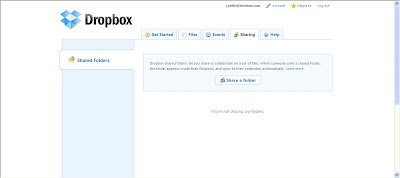
Select the option to share an existing folder, click ‘next’ and then select your CPD23 folder. Enter the email address of someone with whom you wish to share your folder and click ‘share folder’. This will send an email inviting the recipient to view your CPD23 folder via Dropbox. If the recipient is not yet a member of Dropbox, the email will direct them to page asking them to register.
Sharing with someone who does not have a Dropbox account:
Dropbox will also allow you to share single files (but not folders) with people who do not have a Dropbox account. In order to do this, simply copy and paste a file into the folder called ‘Public’ which is already inside the Dropbox folder on your computer.

Next, navigate to your Public folder via your account on the Dropbox website, right-click on the file you want and select ‘Copy public link’. This will give you a URL which links to your file and you can then paste this, for example, into emails or blog posts in order to share it with others. If you wish, you can paste this link into your blog post for Thing 13!

A Wiki is a public or private web page which allows multiple people to contribute to its content. The most obvious example of a Wiki is Wikipedia, the free online encyclopedia that anyone can edit.
Wikis can be a great collaborative tool for library staff and may be particularly useful when creating documents such as library resource guides, student handbooks or teaching materials. Wikis can be used to store information which is useful to all staff members, while at the same time allowing all staff members to edit and update this information. I personally have found a Wiki to be quite useful for recording updates to the website which I jointly maintain with the other graduate trainees in Cambridge. The Wiki enables us to keep a record of the changes that each of us has made to the website, as well as the work which still needs to be done. We also use it to store all our HTML instructions, as well as the weekly rota.
One excellent example of librarians using a Wiki as a collaborative tool is the Library Day in the Life Project, which is a semi-annual event organised by Bobbi Newman (Librarian by Day). Librarians from all around the world add their blog URLs to a shared Wiki and then write blog posts about their working day. The Wiki acts as a central location from which to access all of these blog posts and as such it becomes a really informative web page which offers an insight into the wide variety of careers that exist within the field of librarianship.
Another good example of a Wiki is the Library Routes Project set up by Ned Potter and Laura Woods. This Wiki was set up in October 2009 to bring together the thoughts of Information Professionals on how they got to where they are today, and why they initially chose to work in libraries. As more and more people have contributed, this Wiki has quickly become a valuable career’s resource for those thinking about joining the library profession.
If you’re still unsure about how Wikis can be useful, check out this 'Wikis in Plain English' video.
Optional Activity
If you are interested in setting up your own Wiki, the basic edition of PBWorks provides a free platform for librarians. Alternatively, you could try MediaWiki, which uses the same software as Wikipedia.
Suggestions for your Thing 13 blog post
You could write about your first impressions of any or all of these tools, or you could explore their potential uses within your library. If you are already using one or more of them, you could write about the kinds of projects for which they have been useful. If you wish, you could also compare and contrast the value of each of these different tools and consider how they could be used to further your own professional development.
Don’t forget to visit other CPD23 blogs and share your insights with other CPD23 participants!
In this Thing you will investigate different methods of online collaboration and file-sharing and explore the benefits of using these tools within your library.

For this Thing, you will need to have a go at some of the activities below and then blog about any or all of these tools.
One of the main purposes of Google Drive (formerly Google Docs) is to allow multiple people to edit the same document, spreadsheet or presentation without creating duplicate copies. Documents can either be uploaded or created from scratch within Google Drive and the fact that everyone can access the file in one place means that it is much simpler to edit and update. This can be very useful for librarians who are collaborating on a project; for example, for this very 23 Things programme we used Google Docs to create a spreadsheet of everybody who has registered to take part. This allows us to store the information in a single location where multiple administrators can edit and update it as necessary.
Activity:
Accessing Google Drive is quite straightforward: simply login with the same username and password that you would use to access your Google account. If you don’t have a Google account, you can quickly set one up by clicking here and completing the online form.
Once you have logged in to Google Drive, click ‘Create’ and choose what kind of document you would like to create – such as a spreadsheet, word-processing document or a presentation.
Create your document and it will save automatically, or you can force a save by pressing Ctrl+s.

Now you are ready to share your document, either with a colleague or even with another CPD23 participant if you wish! Click on the ‘Share’ button in the top right-hand corner of the screen. In the ‘Add People’ box, enter the email address of the person with whom you would like to share the document and decide whether you will allow them to edit the document or just to view it. Click ‘Share’ and this person will now receive an email with a direct link to your document.

Dropbox is a free desktop application which allows you to store your documents online so that you can access them from multiple computers.
Like Google Docs, Dropbox can also be used when collaborating with others on a project as it enables easy file-sharing without the need for creating duplicates. For example, one person can drop documents and files into Dropbox and then invite other people to access and edit those files.
Activity
If you don’t already have a Dropbox account, go to the Dropbox website and create one. Once you have created an account, you will be directed to a page that explains how to download Dropbox.
After you have downloaded and installed Dropbox, you will have a Dropbox folder on your computer where you can store any files that you want to share with others. You can access these files from any computer by logging into the Dropbox website with your username and password. From here, you can view, download and upload files securely using any web browser.
Sharing documents using Dropbox
Sharing with someone who already has a Dropbox account:
Create a new folder called CPD23 inside your Dropbox folder, select a file from your computer and paste it into this folder. Now go to the Dropbox website, login if you aren’t already logged in, and click on the tab called ‘Sharing’.

Select the option to share an existing folder, click ‘next’ and then select your CPD23 folder. Enter the email address of someone with whom you wish to share your folder and click ‘share folder’. This will send an email inviting the recipient to view your CPD23 folder via Dropbox. If the recipient is not yet a member of Dropbox, the email will direct them to page asking them to register.
Sharing with someone who does not have a Dropbox account:
Dropbox will also allow you to share single files (but not folders) with people who do not have a Dropbox account. In order to do this, simply copy and paste a file into the folder called ‘Public’ which is already inside the Dropbox folder on your computer.

Next, navigate to your Public folder via your account on the Dropbox website, right-click on the file you want and select ‘Copy public link’. This will give you a URL which links to your file and you can then paste this, for example, into emails or blog posts in order to share it with others. If you wish, you can paste this link into your blog post for Thing 13!
A Wiki is a public or private web page which allows multiple people to contribute to its content. The most obvious example of a Wiki is Wikipedia, the free online encyclopedia that anyone can edit.
Wikis can be a great collaborative tool for library staff and may be particularly useful when creating documents such as library resource guides, student handbooks or teaching materials. Wikis can be used to store information which is useful to all staff members, while at the same time allowing all staff members to edit and update this information. I personally have found a Wiki to be quite useful for recording updates to the website which I jointly maintain with the other graduate trainees in Cambridge. The Wiki enables us to keep a record of the changes that each of us has made to the website, as well as the work which still needs to be done. We also use it to store all our HTML instructions, as well as the weekly rota.
One excellent example of librarians using a Wiki as a collaborative tool is the Library Day in the Life Project, which is a semi-annual event organised by Bobbi Newman (Librarian by Day). Librarians from all around the world add their blog URLs to a shared Wiki and then write blog posts about their working day. The Wiki acts as a central location from which to access all of these blog posts and as such it becomes a really informative web page which offers an insight into the wide variety of careers that exist within the field of librarianship.
Another good example of a Wiki is the Library Routes Project set up by Ned Potter and Laura Woods. This Wiki was set up in October 2009 to bring together the thoughts of Information Professionals on how they got to where they are today, and why they initially chose to work in libraries. As more and more people have contributed, this Wiki has quickly become a valuable career’s resource for those thinking about joining the library profession.
If you’re still unsure about how Wikis can be useful, check out this 'Wikis in Plain English' video.
Optional Activity
If you are interested in setting up your own Wiki, the basic edition of PBWorks provides a free platform for librarians. Alternatively, you could try MediaWiki, which uses the same software as Wikipedia.
Suggestions for your Thing 13 blog post
You could write about your first impressions of any or all of these tools, or you could explore their potential uses within your library. If you are already using one or more of them, you could write about the kinds of projects for which they have been useful. If you wish, you could also compare and contrast the value of each of these different tools and consider how they could be used to further your own professional development.
Don’t forget to visit other CPD23 blogs and share your insights with other CPD23 participants!
Subscribe to:
Posts (Atom)